Convert your 3MF files for your Flashforge printer
Upload the .3mf you got from MakerWorld, Printables, Creality Cloud or another site and get a project ready for your Flashforge, with the infill, supports, temperatures and colors the author set. It opens the same in OrcaSlicer and in Flash Studio. Free, no account, and your file is not kept.
Files up to 100 MB
Where you can bring your models from
The .3mf projects from these sites convert for your Flashforge with the author's settings. Each site publishes with a printer brand in mind, but that doesn't tie you down: you choose the printer they go to.
| Site | Made for | Saved with |
|---|---|---|
| MakerWorld (opens in a new tab) Download the print profile, not the model file: both are .3mf, but only the profile carries the author's settings. | Bambu Lab | Bambu Studio |
| Printables (opens in a new tab) Use “Download”: it gives you the project the designer saved. | Prusa | PrusaSlicer |
| Creality Cloud (opens in a new tab) | Creality | Creality Print |
| makeronline (opens in a new tab) | Anycubic | Anycubic Slicer Next |
| Snapmaker Space (opens in a new tab) | Snapmaker | Snapmaker Orca |
| Meshy (opens in a new tab) Export it as 3MF (multicolor printing), not STL: the STL has no colors. | None, it is AI-generated | Meshy |
Your site isn't on the list? If the file comes from Bambu Studio, OrcaSlicer or a program built on them, it will most likely convert too. Try it: if it doesn't, the app tells you why.
Why MakerWorld and Printables files don't slice well on a Flashforge
MakerWorld models are published from Bambu Studio and carry the full configuration of a Bambu Lab printer: machine, speeds, G-code and AMS filaments. On a Flashforge none of that matches, and the slicer drops the project or loads it halfway. Printables models come from PrusaSlicer, which names things differently: there the slicer opens the part, throws the whole profile away and tells you it loaded the geometry only.
ForgeBridge swaps the part that describes the author's printer for your printer's official profile and keeps their intent: layers, infill, walls, supports, temperatures and colors. That is the trial and error of whoever designed the part, failed prints included, and none of it shows in the geometry: with the STL you start from your generic profile and find out the hard way.
- Unknown printer: Bambu Lab X1 Carbon
- Process profile not found
- Only the geometry was loaded
- Printer: Flashforge (official profile)
- Process: 0.20 mm · 15 % infill · painted supports
- 4 filaments assigned · ready to slice
How to convert a .3mf in three steps
No account, nothing to install, no slicer tweaks. Upload it to the converter and along with the file you get a report of every parameter: what was kept, what was replaced by your printer's profile and what was dropped.
-
01
Download the .3mf
On MakerWorld download the print profile, not the model file: both are .3mf, but only the profile carries the author's settings. On Printables use “Download” and not “Slice”: that one hands you a different file, not the designer's.
-
02
Pick your printer, then upload
You choose your printer first, and only then does the drop area appear, so nobody converts for the wrong machine. No account, nothing to install; the limit is 100 MB.
-
03
Open it in your slicer
Download the converted .3mf and open it as a project in OrcaSlicer or Flash Studio, with your printer selected. Ready to slice.
-
04
Conversion report
Every parameter with its decision: kept, replaced or dropped. It is not a black box.
Or let Chrome do it for you
With the ForgeBridge extension you download the .3mf from MakerWorld, Printables or any of the sites above like always, and a few seconds later the converted file shows up next to the original. It doesn't touch the pages you visit: it only reads the file you just downloaded.
Add to ChromeFree, also works in Edge.
Open it as a PROJECT in your slicer, don't drag it
This is the step most people skip. Open the converted file with File → Open Project or by double-clicking it. If you drag it onto the plate, the slicer imports only the geometry and ignores the whole configuration: it looks like the conversion did nothing, when it was simply never applied.
File → Open Project or double-click the file
Dragging it onto the plate: the slicer imports only the geometry and ignores the whole configuration
There's one person behind ForgeBridge
I build ForgeBridge on my own, in the time I take from other things. It has taken months of work, and I pay for the server and the domain myself so it stays free, with no accounts and no ads for anyone with a Flashforge.
If it helped you, you can help it keep growing. Every contribution lets me set other things aside and put more hours into it: more printers, more formats, and the improvements people ask for in the groups. It's not required to use it, and thank you to everyone who has already chipped in.
Rodrigo Mass, Buenos Aires
What is kept, what is replaced and what is dropped
The rule is simple: quality is defined by the model's author and the machine is defined by your printer's official profile. Speeds and accelerations are dropped because they are tuned for Bambu kinematics and copying them makes the print worse. The report shows you every decision.
Kept
- Layer height
- Infill: % and pattern
- Walls
- Top and bottom layers
- Seam
- Supports: type and angle
- Elephant foot compensation
- Temperatures
- Colors and painting
The author's quality intent travels intact; temperatures are clamped to your printer's limits if needed.
Replaced
- Machine limits
- Start and end G-code
- Nozzle diameter
- Build area
- Printer profile
Everything that belongs to the machine comes from your printer's official profile, the one the slicer ships.
Dropped
- Speeds
- Accelerations
- Bambu hardware: AMS and camera
- Kinematics smoothing
- Cosmetic metadata
They are tuned for Bambu kinematics; copying them makes the print worse. Your printer's profile rules there.
Read the full breakdown: what is kept, what is replaced and why
Multicolor: from the AMS to an IFS or independent extruders
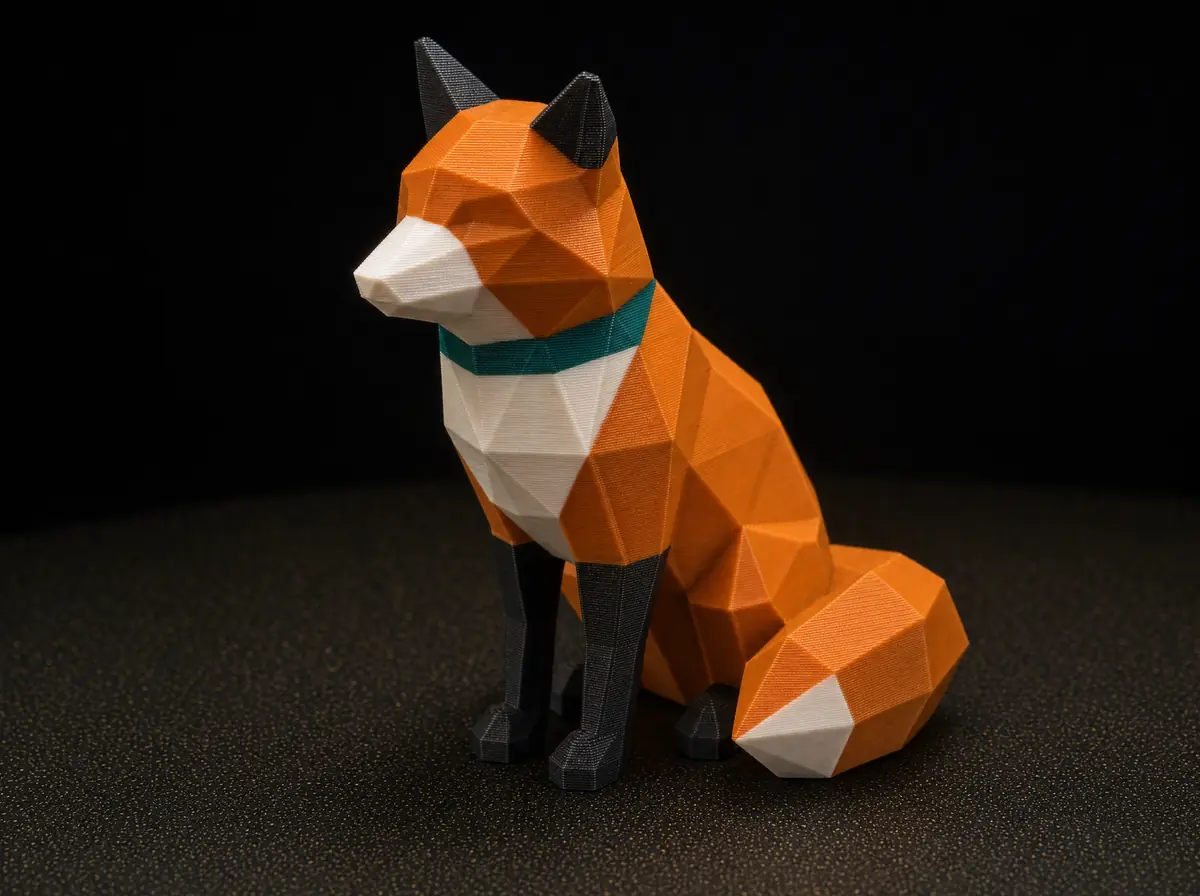
ForgeBridge keeps the model's colors, the per-zone color painting and the filament assigned to each part, and trims the filaments the project defines but never uses. Hand-painted supports and seams are kept as they are; if there are painted supports and support generation was off, it turns it on.
Meshy's multicolor models too: export them as 3MF, not STL (which drops the colors), and they reach your Flashforge with their colors. If the model is a single color, the STL is enough and you don't need ForgeBridge.
If a single color remains, the purge tower turns itself off.
Frequently asked questions
Does it work for other printers?
Today it supports five Flashforge models. Adventurer series: the AD5X (multicolor, 4 slots) and the 5M/5M Pro (single extruder). Creator series: the Creator 5 and 5 Pro, with four independent toolheads; real multicolor prints have already come off a Creator 5. Pick yours in the selector. For anything else, write to hola@forgebridge.app and tell us which one.
Can I use a Bambu Lab profile on a Flashforge?
Not directly. The profile carries the whole machine: kinematics, speeds, start G-code and the AMS filaments. None of that matches a Flashforge, so the slicer either drops the project or loads it halfway. What does transfer is the author's quality intent: layers, infill, walls, supports, temperatures. That is what ForgeBridge does.
Can I use Bambu Studio with a Flashforge printer?
Not to slice for it: Bambu Studio has no profile for any Flashforge, so it can't prepare a print for yours. What you can use is what it produces, the MakerWorld project with the author's settings. Convert it with ForgeBridge, open the result as a project in OrcaSlicer or Flash Studio, and slice there with your printer's profile. Same model, same layers, walls and supports, without the Bambu machine underneath.
Does MakerWorld work with a Flashforge?
Yes, with one step in between. Most MakerWorld models come as a .3mf project that carries the designer's tested settings for a Bambu printer. Open that file as it is on a Flashforge and the slicer drops the settings, or shows the objects off the plate. Convert it with ForgeBridge first and you get the same project, rebuilt for your Flashforge, ready to open and slice.
What exactly is kept, replaced and dropped?
It keeps what defines the model's quality: layers, infill, walls, supports, seam, temperatures and colors. It replaces what belongs to the machine (limits, G-code, nozzle) with your printer's official profile. It drops speeds, accelerations and everything exclusive to Bambu hardware. The conversion report shows every parameter with its decision, so you never have to trust it blindly.
Why does it drop speeds and accelerations?
Because they are tied to the kinematics of Bambu printers, which differ from your Flashforge. Copying them does not make the print faster: it makes it worse, with ringing and lost quality. Your printer's official profile already ships speeds tuned for that machine, and that profile rules. The report lists every dropped value if you want to tune it by hand.
Does it work with multicolor models?
Yes, and it depends on your printer. On the AD5X (4 slots) each color goes to its slot; on the Creator 5 and 5 Pro, to one of its four toolheads; on the 5M and 5M Pro, with a single extruder, the colors are kept and you handle the filament change in the slicer. Filaments the project defines but never uses are trimmed; if a single color remains, the purge tower turns itself off.
What about hand-painted supports or seams?
They are kept. ForgeBridge does not regenerate the geometry: it copies the parts as they are, with everything the author painted on them (supports, seams and colors). And if the model has painted supports but support generation is off, it turns it on, so that manual work is not lost when slicing. The report tells you when that happens.
Does it work with Meshy models?
Yes. Meshy exports its 3MF files in Bambu Studio's format, so they convert just like a MakerWorld project, colors included. If it's a single color you don't need ForgeBridge: download the STL and open it in the slicer. For multiple colors, export as 3MF (multi-color print) with the size already set in Meshy. If it exceeds the limit, don't worry: Meshy saves it uncompressed and the app compresses it in your browser before uploading.
Does it work with Creality Cloud models?
Yes. Creality Cloud projects are saved with Creality Print, which writes the 3MF in the same format as Bambu Studio, so they convert just like a MakerWorld one: with the author's infill, walls, supports and colors. Download the model's .3mf, not the STL, which only carries the shape. It doesn't matter whether the author set it up for a K1 or a K2: you choose the printer it goes to.
Does it work with makeronline (Anycubic) models?
Yes. makeronline is Anycubic's model site and its projects come from Anycubic Slicer Next, which uses the Bambu Studio format. They convert just like a MakerWorld one, with the author's infill, walls, supports and colors. Download the model's .3mf, not the STL, and upload it as is: it doesn't matter which Kobra the author set it up for.
Does it work with Snapmaker Space models?
Yes. Snapmaker Space projects come from Snapmaker Orca, an OrcaSlicer derivative, and convert like any other: ForgeBridge swaps the Snapmaker profile for your Flashforge's and keeps what the author set: infill, walls, supports and colors. If the model is for the four-toolhead U1, the colors still reach your printer. Download the .3mf with the profile, not the STL.
Does it work with Printables models?
Yes. What you download from Printables is a PrusaSlicer project, and it converts just like a MakerWorld one: ForgeBridge translates its settings into your slicer's vocabulary and keeps layers, walls, infill, supports, parts, modifiers and painting. Unconverted, the slicer opens that file as “geometry data only” and drops the author's profile. If the file is just the model (an STL, or a 3MF without a profile), there is nothing to convert: open it directly.
OrcaSlicer or Flash Studio?
Whichever you already use: the converted file is the same and opens in both. OrcaSlicer ships the official Flashforge profiles, and Flash Studio (Orca-Flashforge) is the vendor slicer. Just open the file as a project and pick your printer. If Flash Studio loads it with the clean profile or warns about unknown keys, it is an old build: update it from Help → Check for updates.
Why does my slicer ignore my .3mf settings?
A Bambu Studio project stores its settings, but also a list that tells the slicer which of them differ from the base profile. If that list does not match your printer's profile, the slicer loads the clean profile and ignores what was saved: infill, supports, temperatures. ForgeBridge regenerates that list for your Flashforge. And remember to open the file as a project: dragging it in drops the settings all the same.
Why do I get “Invalid values found in the 3MF”?
Bambu Studio writes -1 in some settings to mean “automatic”: tree support wall count and raft expansion are the two cases seen so far. OrcaSlicer accepts it; Flash Studio does not, and shows that warning when it opens the project. ForgeBridge catches them first and clamps them to a valid value from your printer's profile, and tells you which ones in the report.
Why do I get “Partial flushing volume set to 0”?
Usually that warning comes from a project saved on a Bambu printer with two nozzles, like the H2D. It stores one purge matrix per nozzle, so the file carries twice the values a single-nozzle slicer expects; read as one table it has zeros where it should not, and Flash Studio or OrcaSlicer warns (some builds call it a flush volumes matrix of the wrong size). ForgeBridge keeps only the block your Flashforge needs, so the table opens clean.
Why do I get “The 3MF is not supported by OrcaSlicer, loading geometry data only”?
That file is a PrusaSlicer project, usually downloaded from Printables. The slicer understands the geometry but not the profile, so it opens the part and drops layers, infill, walls and supports: you end up with the model and your own settings, not the author's. Flash Studio warns much the same. Convert it with ForgeBridge and the profile arrives translated into your printer's vocabulary.
Why do the objects show up off the plate?
Bambu and PrusaSlicer .3mf files store each object's position in coordinates of their own plate, which rarely matches yours: those same coordinates land outside and the slicer refuses to slice. ForgeBridge moves every object into the target plate's system and keeps the author's layout. If something still shows up off the bed, move it in the slicer.
What happens to my file, and is there a size limit?
While it uploads it may pass through a temporary file on the server that is deleted when the request ends; the conversion runs in memory and the result can be downloaded for 5 minutes or up to 3 times. After that it is no longer reachable. There are no accounts and no third-party trackers. The limit is 100 MB per file; if yours is bigger, write to hola@forgebridge.app.
Convert your first file
Upload the .3mf, wait a few seconds and open the project in OrcaSlicer or Flash Studio with your Flashforge. Free, no account.
Convert now- Free
- No account
- Your file is not stored
- Multicolor intact